# Cargoland
Overview
Our cutting-edge technology is designed to streamline your operations, reduce costs, and improve the level of service you provide to your customers. With a wide range of features that cater to both freight forwarders and logistics professionals, Cargoland is the perfect solution for businesses of all sizes. From freight posting and truck viewing to advanced filters and up-to-date fuel prices, our platform has everything you need to take your logistics to the next level. Discover the power of Cargoland today and start optimizing your operations for maximum efficiency and profitability. So, if you are looking for logistics management software, freight management software, or transportation management software, Cargoland is the best choice.
### Freights
Cargoland’s freights are designed to make your logistics process more efficient and cost-effective. Our platform offers a range of tools to help you quickly and easily post, view, and filter freights, as well as communicate with other freight professionals. With our advanced filters, you can find the perfect freight match for your needs, and our messaging system allows you to easily coordinate with other logistics professionals. Additionally, you can view all the details of the freight that has been provided, such as weight, volume, and type of cargo.
{% content-ref url="/pages/N1Pt4hA3cKgGe2GXY6HI" %}
[Freights](/freights)
{% endcontent-ref %}
### Vehicles
In addition to freight posting, our platform also allows users to post and view available trucks. This feature helps shippers find the right truck for their shipment, and truck owners to find loads. You can view the details of the truck, such as the make and model, capacity, and dimensions.
{% content-ref url="/pages/zWezXi2pDVqLtUDXYcCt" %}
[Available Vehicles](/available-vehicles)
{% endcontent-ref %}
### Round-Trips
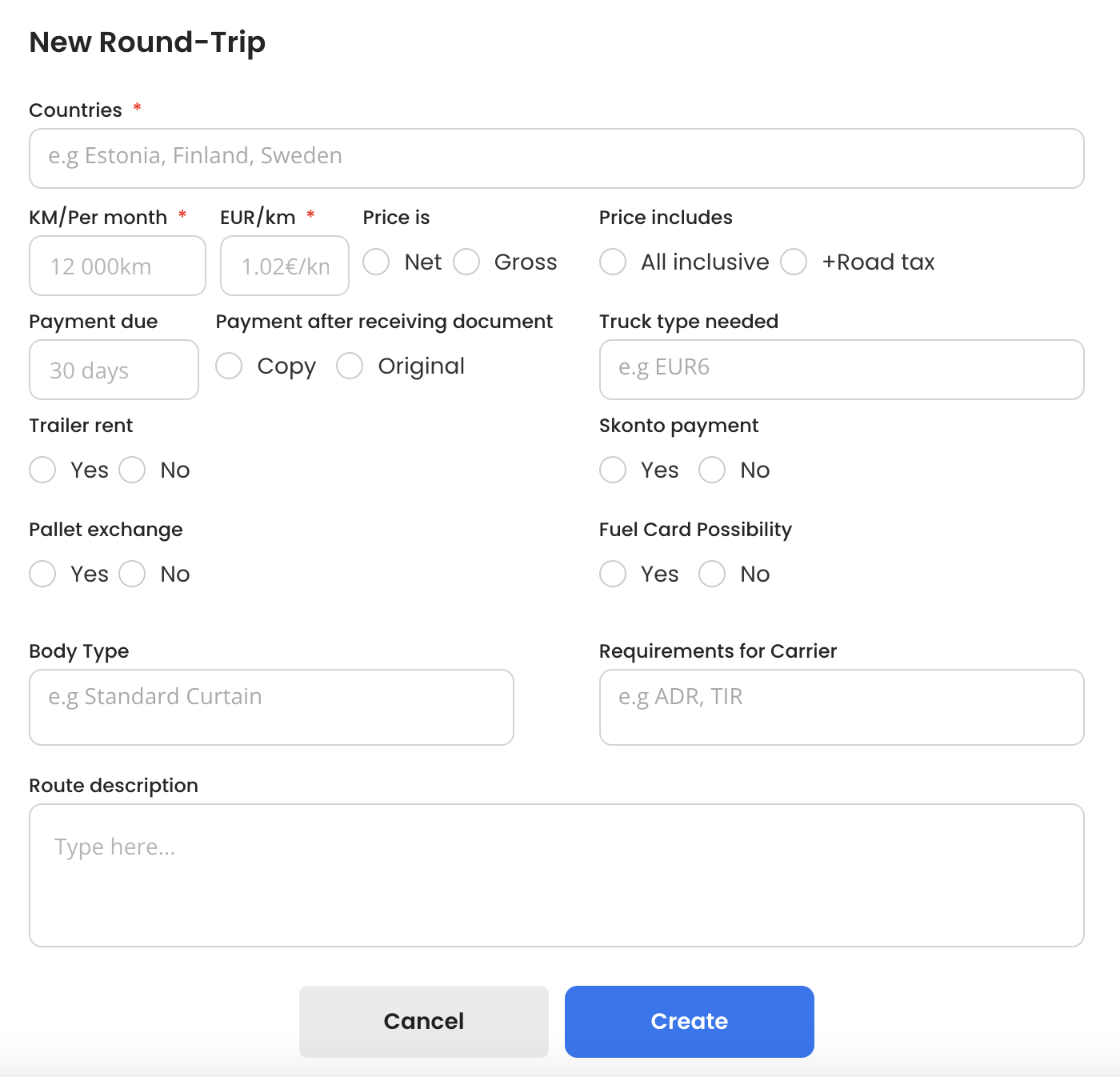
With our platform, users can easily find detailed information about round-trip ads, including the countries of origin and destination, the distance, and the price per kilometer. Users can also see if the price includes all expenses or additional costs, such as road tax. They can also view the payment due date and options, whether the payment is after receiving original documents or not. Our platform also allows users to see truck type, trailer rental availability, skonto payment options, pallet exchange possibilities, and fuel card options. Furthermore, users can filter by body type and carrier requirements such as ADR, TIR, etc.
{% content-ref url="/pages/eJB7tBrt8tt1s6VFQtsN" %}
[Round-Trips](/round-trips)
{% endcontent-ref %}
### Marketplace
Our platform also has a marketplace section where users can post and view products that they want to buy or sell. This feature helps shippers and truck owners to find or sell products they need or have.
{% content-ref url="/pages/qByqxVlXEql1HecSPGbX" %}
[Marketplace](/marketplace)
{% endcontent-ref %}
### Messaging
Our platform includes a messaging feature that allows users to communicate with other users on the platform, such as shippers, truck owners, and other logistics managers. This feature makes it easy to coordinate shipments and ask questions.
{% content-ref url="/pages/yIP90UDCHUYIhT9CeWyd" %}
[Sending messages](/viewing-profile-and-reviews/sending-messages)
{% endcontent-ref %}
### Advanced filters
In addition to the basic features, our platform also includes advanced filters that allow users to sort and search for freight, trucks, round-trips and products based on specific criteria such as location, weight, volume, type of cargo, and more.
{% content-ref url="/pages/8UJETpdzah2qRtMWiaoP" %}
[Filters & Sorting](/filters-and-sorting)
{% endcontent-ref %}
### Fuel Price
Our platform also includes a feature that provides current fuel prices statistics for different countries in Europe, which can help truck owners and logistics managers to plan their trips and budget accordingly.
{% content-ref url="/pages/t61j8nGgs5TWS1apDuzQ" %}
[Fuel Prices](/fuel-prices)
{% endcontent-ref %}
### Trip Calculator
Our platform includes a built-in logistics calculator that allows users to estimate the travel time, cost of fuel, and distance for a given truck trip. This feature helps logistics managers to plan and budget for shipments more effectively.
{% content-ref url="/pages/W2WMrwgFkUGaNy80c2x9" %}
[Trip Calculator](/trip-calculator)
{% endcontent-ref %}
# Freights
To add a new freight, follow these steps:
1. Navigate to the left sidebar and click on "Freights".
2. Click on the blue button on top of the page that says "+ Add Freight".
3. Choose whether you want to add a single freight **"Single"** or multiple freights at once **"Quick"** or even with AI clicking on **"Write"**.
### Single Form:
* Fill in the following fields: Country from, Index/ZIP, Country to, Index/ZIP, Loading date(s), Unloading date, Body Type, Extras, Type of Load, Loading position, Palletized, Total LDM, Weight, Volume, Price of freight, Payment after this document, Width, Height, Length, Payment due, Description, Status.
* Click on "Publish" button to make the freight visible on the platform.
{% hint style="warning" %}
**Required fields are:** Country from, Country to, Loading date, Body type, Type of Load, LDM, Weight
{% endhint %}
### Quick Form:
* Fill in the following fields: Loading date(s), Unloading date, Multiline input.
* The multiline input should be filled with a specific pattern and each new freight has to be on a new line, for example: Uddevalla-Sundsvall,FTL,(Platform\&Box),24000kg.
1. Street/City/Index ( from )
2. Street/City/Index ( to )
3. Loading size (FTL/LTL)
4. Trailer types
5. Weight in kg
* Click on "Publish" button to make the freights visible on the platform.
By following these steps, you can easily add new freights to the platform and make them visible to other users.
### Write ( Add Freight with the help of AI )
Cargoland is excited to introduce a new feature that allows users to type in their native language and have our AI system process and post their freight. This is a game-changing advancement in the world of freight forwarding and logistics, as it removes language barriers and makes the process more accessible and user-friendly for everyone.
To use this feature, you will see a button that says "Write." Clicking on this button will open a new text box where you can type about the freight being offered in your native language.
The AI system will then process your text, translate it into the language required for the system, and post it accordingly. This process is quick, accurate, and efficient, allowing you to post your freights with ease.
{% hint style="warning" %}
AI is limited to Paid users only and can handle one freight at a time
{% endhint %}
### Editing existing vehicle
To edit an existing vehicle post, you can follow these steps:
1. Go to the "Freights" page by clicking on the "Freights" option in the left sidebar menu.
2. Locate the freight post that you want to edit, open it and click on the Pen icon located in the top right corner of the post.
3. This will prompt the same form as when creating a new freight post. You can make the necessary changes and then click on the "Save" button to save their changes.
Alternatively, you can also navigate to the "Dashboard" from the left sidebar menu and then click on the "Freights" option. This will show a list of all the freights posts that you have created. You can locate the post that you want to edit and then click on the Pen icon to make the necessary changes. Remember to click on "Save" button after making changes.
{% hint style="info" %}
Also when editing a post you have the option to **save it as a new post**. In case you have same/similar freight and just need to update couple of fields.
{% endhint %}
{% content-ref url="/pages/jyNsFSSl39udguVeCqhZ" %}
[Viewing a Post](/viewing-a-post)
{% endcontent-ref %}
{% content-ref url="/pages/8UJETpdzah2qRtMWiaoP" %}
[Filters & Sorting](/filters-and-sorting)
{% endcontent-ref %}
{% content-ref url="/pages/W2WMrwgFkUGaNy80c2x9" %}
[Trip Calculator](/trip-calculator)
{% endcontent-ref %}
# Available Vehicles
### Adding new vehicle
To add a new vehicle to our platform, you should first navigate to the "Vehicles" section from the left sidebar menu. Once there, you can click the blue "+ Add new vehicle" button located at the top of the page.
Users will then be prompted to fill out a form with various details about the vehicle. This includes:
* Country from and Index/ZIP
* Country to and Index/ZIP
* Loading and unloading dates
* Body type (options include Curtain, Mega, Truck trailer, Box, Container, Solo Truck, Tipper Tank, Car trailer, Platform, Livestock, 2axle tractor, 3axle tractor, Van 3.5t, Frigo, Jumbo, Open Truck, Timber Truck, Open Body, and Other)
* Extras (options include ADR, TIR, CMR-Insurance, Walking floor, Tailgate, GPS Tracking, EU-license, Temp C, Multilift, Refrigerator, Isoterm, TIR-Cable, Liftable roof, XL-Certificate, Pallet exchange, and Crane)
* Type of load (options include FTL (Full load) and LTL (Partial load))
* Loading position (options include Side, Back, and Top)
* Total LDM (meters)
* Weight (kg)
* Volume (m3)
* Width, Height, and Length
* Whether more vehicles are available (options include Yes and No)
* Whether the vehicle is available for round-trips (options include Yes and No)
* The wished price
* A text area for a description
* Whether the vehicle is ready to start now (options include Yes and No)
{% hint style="warning" %}
**Required fields are:** Country from, Country to, Loading date, Body type, Type of Load, LDM
{% endhint %}
Once all the required fields have been filled in, you can click the "Publish" button to add the vehicle to the platform. It is important to note that the more details and information provided about the vehicle, the better chance it has of being selected by shippers.
### Write ( Add Vehicle with the help of AI )
Cargoland is excited to introduce a new feature that allows users to type in their native language and have our AI system process and post their Vehicle / Available Cargo space. This is a game-changing advancement in the world of freight forwarding and logistics, as it removes language barriers and makes the process more accessible and user-friendly for everyone.
To use this feature, you will see a button that says "Write." Clicking on this button will open a new text box where you can type about the vehicle being offered in your native language.
The AI system will then process your text, translate it into the language required for the system, and post it accordingly. This process is quick, accurate, and efficient, allowing you to post your vehicles with ease.
{% hint style="warning" %}
AI is limited to Paid users only and can handle one vehicle at a time
{% endhint %}
### Editing existing vehicle
To edit an existing vehicle post, you can follow these steps:
1. Go to the "Vehicles" page by clicking on the "Vehicles" option in the left sidebar menu.
2. Locate the vehicle post that you want to edit, open it and click on the Pen icon located in the top right corner of the post.
3. This will prompt the same form as when creating a new vehicle post. You can make the necessary changes and then click on the "Save" button to save their changes.
Alternatively, you can also navigate to the "Dashboard" from the left sidebar menu and then click on the "Vehicles" option. This will show a list of all the vehicle posts that you have created. You can locate the post that you want to edit and then click on the Pen icon to make the necessary changes. Remember to click on "Save" button after making changes.
{% hint style="info" %}
Also when editing a post you have the option to **save it as a new post**. In case you have the same/similar vehicle and just need to update a couple of fields.
{% endhint %}
{% content-ref url="/pages/jyNsFSSl39udguVeCqhZ" %}
[Viewing a Post](/viewing-a-post)
{% endcontent-ref %}
{% content-ref url="/pages/8UJETpdzah2qRtMWiaoP" %}
[Filters & Sorting](/filters-and-sorting)
{% endcontent-ref %}
{% content-ref url="/pages/W2WMrwgFkUGaNy80c2x9" %}
[Trip Calculator](/trip-calculator)
{% endcontent-ref %}
# Round-Trips
### Adding new Round-Trip
Access "Round-Trips" from the left menu, and click on the "+ New Round-Trip" button on the top of the page.
* Countries: Select the countries involved in the round-trip.
* KM/Per month: Enter the number of kilometers per month for the round-trip.
* EUR/km: Enter the offered price per kilometer for the round-trip.
* Price is: Select if the price is net or gross.
* Price includes: Select if the price includes all inclusive or road tax.
* Payment due: Enter the payment due date for the round-trip.
* Payment after receiving document: Select if the payment is to be made after receiving a copy or original document.
* Truck type needed: Select the type of truck needed for the round-trip (EUR3, EUR4, EUR5, EUR6 or more).
* Trailer rent: Select if trailer rent is offered.
* Skonto payment: Select if skonto payment is offered.
* Pallet exchange: Select if pallet exchange is offered.
* Fuel Card Possibility: Select if a fuel card is offered.
* Body Type: Select the type of body needed for the round-trip.
* Requirements for Carrier: Select the requirements for the carrier for the round-trip.
* Route description: Enter a brief description of the route for the round-trip.
* Cancel: Click to cancel the round-trip creation process.
* Create: Click to create the new round-trip.
{% hint style="warning" %}
**Required fields are:** Countries, KM/Per month, EUR/km
{% endhint %}
## Edit Round-trip
To edit an existing round-trip:
1. Navigate to the "Round-Trips" page, locate the round-trip you wish to edit, open it
2. Click on the Pen icon on the top right corner of the post.
3. You will be prompted with the same form as when creating a new round-trip, and you can make the necessary changes and save them.
Alternatively, you can also navigate to the "Dashboard" from the left sidebar menu and then click on the "Vehicles" option. This will show a list of all the Round-Trip posts that you have created. You can locate the post that you want to edit and then click on the Pen icon to make the necessary changes. Remember to click on "Save" button after making changes.
{% hint style="info" %}
Also when editing a post you have the option to **save it as a new post**. In case you have the same/similar round-trip and just need to update a couple of fields.
{% endhint %}
{% content-ref url="/pages/8UJETpdzah2qRtMWiaoP" %}
[Filters & Sorting](/filters-and-sorting)
{% endcontent-ref %}
{% content-ref url="/pages/jyNsFSSl39udguVeCqhZ" %}
[Viewing a Post](/viewing-a-post)
{% endcontent-ref %}
# Marketplace
The Marketplace can be accessed from the left menu. To add a new listing, click on the "+ New Product" button on the top of the page.
The form for creating a new listing includes the following fields:
1. Title: A brief title that describes the item being listed.
2. Type: Whether the user is looking to sell or looking to buy an item.
3. Description: A detailed description of the item being listed.
4. Product category: The category the item belongs to.
5. Vehicle manufacturer: The manufacturer of the vehicle, if applicable.
6. Vehicle Type: The type of vehicle, if applicable.
7. Year: The year the vehicle or item was manufactured.
8. Mileage: The mileage of the vehicle, if applicable.
9. Address: The location of the item.
10. Do you want people to make offers?: The user can choose whether they want to receive offers or not.
11. Price: The asking price for the item.
12. Is the price for 1 piece?: If the item is being sold in bulk, the user can specify if the price is for one piece or not.
13. Images: The user can upload images of the item being listed.
Once all the fields are filled out and the images are uploaded, the user can click on the "Create" button to publish the listing. They can also "Cancel" to discard the listing.
### Editing existing product
To edit an existing product post, you can follow these steps:
1. Go to the "Marketplace" page by clicking on the "Marketplace" option in the left sidebar menu.
2. Locate the product post that you want to edit, open it and click on the Pen icon located in the top right corner of the post.
3. This will prompt the same form as when creating a new product post. You can make the necessary changes and then click on the "Save" button to save their changes.
Alternatively, you can also navigate to the "Dashboard" from the left sidebar menu and then click on the "Marketplace" option. This will show a list of all the products posts that you have created. You can locate the post that you want to edit and then click on the Pen icon to make the necessary changes. Remember to click on "Save" button after making changes.
{% content-ref url="/pages/8UJETpdzah2qRtMWiaoP" %}
[Filters & Sorting](/filters-and-sorting)
{% endcontent-ref %}
{% content-ref url="/pages/jyNsFSSl39udguVeCqhZ" %}
[Viewing a Post](/viewing-a-post)
{% endcontent-ref %}
# Filters & Sorting
### Available Filters
* Vehicles: Country from\&to by country code or by searching by radius, Body Type, Type of Load, Loading Position, Total LDM, Loading dates
* Freights: Country from\&to by country code or by searching by radius, Body Type, Type of Load, Loading Position, Total LDM, Loading dates
* Round-trips: Countries, KM/Per Month, EUR/km, Truck type, Body Type, Requirements for Carrier
* Marketplace: Product Category, Vehicle Manufacturer, Vehicle Type, Year, Mileage, Price
#### To use filters:
1. Navigate to the page you need "Freights, Vehicles, Round-trips, Marketplace"
2. Click on the "Filters" button on the top right corner to open the filter options
3. Select the filters that you want to apply to your search
4. Filters will be automatically applied
5. To clear filters, click on the "Clear" button
6. (For Vehicles, Freights only) To save filters, enter a name for the filter, and then click on "Save". To use saved filters, click on the filter you want to apply.
7. To edit or delete saved filters, click on the "Pen icon/Trash" button.
### Sorting
To use the sorting functionality, navigate to the page you want to sort "Freights, Vehicles, Round-Trips". \
Click on the table header that you'd like to sort by ( Loading date, Weight, LDM | Price/KM, Distance ), after you've clicked on the table header, arrows will show up. That means that the table is now active and can be sorted with the arrows.
{% hint style="warning" %}
When activating a header, click on the most important one first, before activating other columns to sort by. **It works in the order of importance.**
{% endhint %}
### Daily/Weekly Notifications 🔔
With this feature, users can select whether they want to receive daily or weekly emails, and choose a specific time and day to receive them. If notifications are enabled, users will also receive notifications on their computers and phones. This feature is designed to keep users up-to-date on the latest freights & vehicles that match their criteria.
# Viewing a Post
You can view posted ads by navigating to the appropriate section (such as "Vehicles", "Freights", "Round-trips", or "Marketplace") from the left sidebar menu. Once on the appropriate page, you will be able to see a list of all posted ads. You can also use the search bar and filters (if available) to narrow down their search results.
{% content-ref url="/pages/8UJETpdzah2qRtMWiaoP" %}
[Filters & Sorting](/filters-and-sorting)
{% endcontent-ref %}
Additionally, you can view the details of a specific ad by **clicking on it from the list view** or by **clicking on the "+" icon**. You can also edit or delete your post by opening it and clicking on the pen or trash icon respectively.
{% content-ref url="/pages/W2WMrwgFkUGaNy80c2x9" %}
[Trip Calculator](/trip-calculator)
{% endcontent-ref %}
### Hiding columns
To hide or show columns, click on the options button on the top of the page
Where you will be prompted with options to turn on/off different columns based on the page you are.
### Adding a post to favorites
Once you are on the Freights/Vehicles/Round-trip page it is easy with just a click of a button. Navigate to the Heart icon on the post you want to add to your favorites and click on it.
To view your favorite posts, click on the heart icon in the right-bottom of the screen
# Trip Calculator
Accessing the Trip Calculator is easy, simply navigate to the Freights or Vehicles menu and look for the "Map" icon.
Clicking on this icon will open up a map that displays important information such as the distance of the trip, the estimated truck travel time, as well as the estimated fuel cost and consumption. These values are calculated automatically based on data from your account, you can modify them by editing the default values in your account settings.
Additionally, you can also modify the fuel price and consumption in the input forms located below the calculations. This feature is a great tool for helping you plan your trips and estimate the cost of fuel, making it an essential part of your transportation logistics.
# Viewing Profile & Reviews
To view a user's profile, you can start by navigating to one of the main pages such as "Freights", "Vehicles", "Round-trips" or "Marketplace". Once you are on the desired page, you can browse through the different posts made by users and look for the post that you want to view more information about. Once you have located the post, you can click on the user's profile picture located on the post. This will take you to the user's profile page.
On this page, you will be able to see various information about the user such as their past activity. You can view the total number of Freights, Vehicles, Round-trips, and Products that they have posted on the platform and also see a breakdown of how many of those posts have been made in the past year. Additionally, you can also view a company that they are working for.
{% content-ref url="/pages/gWjJS7zzaEpJczdyRPOT" %}
[Company Profile](/viewing-profile-and-reviews/company-profile)
{% endcontent-ref %}
By scrolling down you will be able to leave a review for the user for: Communication, Payment, Recommend, and Quality. In addition, you can see the users' past overall ratings.
# Sending messages
Sending messages to users is simple, when you are on the user profile simply click on "Send Message" and this will start a conversation with that user. If you have communicated with that user before you can simply click on "Messages" from the left-side menu and find the existing conversation. Once you are in the conversation, you can send messages back and forth with the user.
Additionally, you can also attach files, images, and documents to your messages to make communication more efficient. Keep in mind that all messages are private and only visible to you and the person you are communicating with. Users also have the ability to block all messages if they no longer wish to communicate. If you need to reference a previous message or conversation, you can also find all your previous conversations in the "Messages" section of the left-side menu, where you can easily access the history of all your previous conversations.
{% hint style="warning" %}
Messages will be deleted after 60 days
{% endhint %}
# Company Profile
A company profile is a representation of a company on the platform and can be accessed by clicking on a company's name from a User profile.
It is similar to a user profile in that it displays information about the company, but it also includes additional details such as combined statistics for all of the users who are associated with the company. When viewing a company profile, you will be able to see the total number of Freights, Vehicles, Round-trips, and Products that have been posted by the company users, as well as the number of posts that have been made in the past year. You will also be able to see the company's contact details such as their address, phone number, and email, as well as any additional information that they have provided about their business, such as their services, reg number, and years of experience. This feature is useful for getting a better understanding of a company before engaging in any business with them. You can also view the company's other team members. Like so, you can be sure you are dealing with a reliable and trustworthy company.
# Fuel Prices
To access Fuel Prices, you can navigate to the "Fuel Prices" option from the left side menu on the website. This will take you to a page where you can view all the petrol and diesel prices for different countries in Europe. To make it easier to find the prices for a specific country, you can use the search bar at the top of the page. Additionally, you can view statistics of past prices for a specific country by clicking on the country name. Please note that the fuel prices are updated every 2-3 days and the last updated date will be displayed on the top right corner of the page for reference.
{% hint style="info" %}
The statistics feature is only available on the Desktop.
{% endhint %}
# Creating & Joining a Company
To create a company, simply navigate to "Dashboard" and click on "Create Company" by filling out all the details about the company such as:
* Company name
* Company address
* Reg no.
* VAT no.
* Company established
* Activities
* Your position
* Leader name
* Phone
* Website
* Logo
After that is done, simply click on "Create" and your company is now published and others can join it.
{% hint style="info" %}
Before anyone can join the company creator will get a notification where the owner has to Approve / Decline the request
{% endhint %}
### Joining a company
To join a company, simply navigate to "Dashboard" and click on "Join Company" search for the company name, click on it, and after that click on "Request to join".
After clicking on "Request to join" the user who created the company will get a notification that you want to join the company - which the user can "Accept" or "Decline".
{% hint style="info" %}
It is always good to gather all Employees under one company, because in such way you will be growing the same company statistics and reputation.
{% endhint %}
### Manage Users
User management is an important aspect of any logistics or freight forwarding platform, and at Cargoland Freight, we take it seriously. Our user management system is designed to make it easy for administrators to manage users and their access to the platform.
With user management, administrators can create new users, delete existing users, and edit user details as needed.
To manage users, simply navigate to the "Manage users" section, when editing a company. Here, administrators can see a list of all users and their details, including their name, email address and subscription access.
Administrators can add new users by clicking on the "Add User" button and filling out the required information, such as name, email address, and phone number. They can also assign subscription licence to the user.
If an employee leaves the company or no longer needs access to the platform, administrators can easily delete the user's account and revoke their access to the platform. This ensures that only authorized users have access to sensitive information and features.
User management is an important part of maintaining the security and integrity of a logistics or freight forwarding platform. With Cargoland Freight's user management system, administrators can easily manage users and their access to the platform, ensuring that only authorized users have access to sensitive information and features.
At Cargoland Freight, we are committed to providing our users with a secure and user-friendly platform. Our user management system is just one of the many ways we are striving to achieve this goal. Try it out today and see how Cargoland Freight can help streamline your logistics process.
# Send Emails
You can also simplify your workflow in another way. Let's say that some businesses that you are working with, are not using Cargoland, but you want to send them information about Freights & Vehicles that you have to offer, without doing extra work. That's made easy with Cargoland.
Simply navigate to "Dashboard" and then select your post type ( Freight, Vehicle, Round-trip) and click on "Prepare Email" and you will be able to select posts that you want to share with others.
After you've selected the posts, click on "Confirm" and you will be prompted with Email template that you can just select and copy, to send as an Email.